Translate

Saturday, September 14, 2013

Solution wont deploy, error in web.config, and avoiding this

If you ever run into an issue where you or one of your fellow admins went to deploy a solution using PowerShell and did not use the correct parameters, or it was attempted to deploy a solution that was already deployed with force, the web.config may corrupt and your team may receive an error.

Here is an example of an admin, fishing around for the correct parameters, and then forcing things just because PowerShell hinted so:

click on any of the pictures to see them bigger
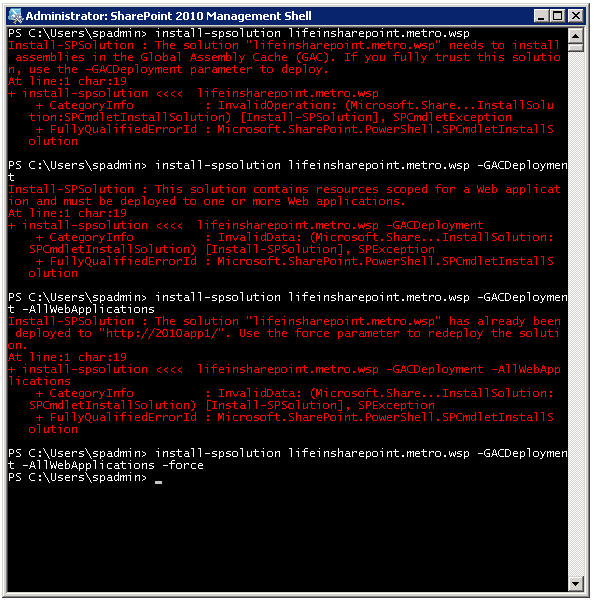
High School Shop Teacher Advice:  My High school shop teacher's advice holds true in this case as well.  Mr. Spring said, " It's always best to avoid having to force things" and he was right! 

So, in the example above, the admin should have determined where the solution was deployed before redeploying, by visiting Farm Solutions under system settings and looking at the solution, or by using the dot method with the deployedwebapplications property of the get-spsolution cmdlet. 

Please Note: The driver behind the web.config corruption in this example was the admin service not having been started, not the -force; although, that is not to say that -force is without error causing or issues and there are times when it is absolutely necessary.  The point I'm trying to make here is don't make it your first option.


After that the Admin should have determined that the status of the Microsoft SharePoint 2010 Foundation Administration service on the server running central admin was started, before re-deploying or taking any action on the solution.

Please Note:  Sometimes it is necessary to totally remove and redeploy a solution when this happens.  When you're about to retract a solution, It's always best to have gone into the site collection features and site features, and deactivate any features, starting with site features (_layouts/ManageFeatures.aspx) and progressing to site collection features (_layouts/ManageFeatures?Scope=Site), then retract solution from the farm after deactivation of features at the Site and Site Collection level. 

This is so important, because if the farm solution is retracted without those precautions, often times this creates orphaned features that hinder re-deployment.


GUI isn't safe either

Corruption of the web.config can also occur when attempting to deploy the solution via the gui when the Microsoft SharePoint Foundation Administrative Service is not started 

This is the message that is indicative of the type of web.config corruption that can occur when a solution deployment is attempted from a farm server in a farm that does not have Microsoft SharePoint Foundation Administrative Service properly configured to run under a domain account:


This is the error that'll result\be displayed when deployment is attempted via the GUI and Microsoft SharePoint Foundation Administrative Service is not started on the server running central admin.  At this point, you're best bet is to determine how deep the corruption has went, hopefully it is just one web application's web.config.

Because this can corrupt the web.config file of one or more web applications, it is important:

  • to check that the Microsoft SharePoint Foundation Administrative Service is configured to run with a domain account,
  • to know where solutions are deployed,
  • and to use correct parameters when deploying using Powershell.
  • Schedule Job's to run in the future

If the error in the web.config persists, simplest way to correct this issue is to rejoin the server to the farm.  Rejoining the server to the farm will give it a new web config. 

IMPORTANT NOTE:  this advice pertains to a farm with more than one web front end, where the corruption is present in a web front end that is not hosting central administration.  Do not use this advice, without moving central admin to another server.

Once central admin is on a server that does not have a corrupted web.config, rtake the server with the corruption out of the farm and rejoin the farm.

1. Open the SharePoint 2010 Products Configuration Wizard and take the server out of the farm
2. Open the SharePoint 2010 Products Configuration Wizard and join the server into the farm


Long story short:
 
The result of not properly removing features either via powershell or the gui is some form of corruption of the web application.  The same is true with deploying using incorrect parameters and forcing things - - >The web config may become corrupted as a result. 
 
Make sure the server is not running central admin, if it is, switch central admin to a different farm server, if a single farm, use powershell to remove solution after, using powershell to remove features. Then in either case, remove and rejoin farm.
 
 
Cheers!!

Sunday, September 8, 2013

Backup and Restore vs Export and Import

Here are a couple ways to copy content around in SharePoint:

Backup-SPSite and Restore-SPSite
 
and
 
Export-SPWeb and Import-SPWeb


A couple things to keep in mind:
 
Backup Restore SPSite is best used on Top sites, so use Backup and Restore SPSite if you are copying an entire site collection and all of it's sub sites to a new site collection on say a UAT or Production server. 
 
Use Export\Import SPWeb if you are copying a sub site and it's sub sites to a new location in a different site collection or if you are exporting a particular list or library to later import to a new site.
 
Make sure when exporting and importing that the site templates of the two sites, match.  In otherwords, if you are exporting from a team site ( webtemplate = STS#0 ) then make sure the target site that you're importing into is also based on the team site template. This post has good information on exporting and importing sites. http://anothersharepointblog.blogspot.com/2013/08/exporting-and-importing-cannot-import.html
 
Cheers,


Saturday, August 31, 2013

Searching through ULS logs for a correllation ID (Merge-SPlogFile)

As tempting as it is to start opening ULS logs that surround the time of your correlation ID, you should avoid that practice, unless you have lots of time on your hands.

Here is an easier and more effective way to get at your issue:


Use the Merge-SPLogFile

Merge-SPLogFile -Path <String> [-Area <String[]>] [-AssignmentCollection <SPAssignmentCollection>] [-Category <String[]>] [-ContextFilter <String[]>] [-Correlation <Guid[]>] [-EndTime <DateTime>] [-EventID <String[]>] [-ExcludeNestedCorrelation <SwitchParameter>] [-Level <String>] [-Message <String[]>] [-Overwrite <SwitchParameter>] [-Process <String[]>] [-StartTime <DateTime>] [-ThreadID <UInt32[]>]

You must specify the Path parameter so that a file can be created that holds just the lines that correspond to your search criteria.

You can search of a string of text using the -message parameter and it accepts wildcards (*)

It looks through all your log files and returns just the lines containing your search criteria.

http://technet.microsoft.com/en-us/library/ff607721(v=office.14).aspx


This example looks through all servers in your farm and merges the logs for correlation id 'B4BBAC41-27C7-4B3A-AE33-4192B6C1E2C5 that occurred between 4 and 415 pm

Merge-SPLogFile –Path "C:\Logs\FarmMergedLog.log" -Correlation B4BBAC41-27C7-4B3A-AE33-4192B6C1E2C5 –StartTime "05/01/1967 16:00" – EndTime "05/01/1967 16:15"

Check out this blog for yet another way to peel this egg, get-splogevent:

http://zimmergren.net/technical/sp-2010-find-error-messages-with-a-correlation-id-token-in-sharepoint-2010

Sunday, August 25, 2013

Help to avoid and partially clean up missing server side dependencies

Orphaned items within sites can cause all sorts of issues:  Missing Server side dependencies, Sites not replicating correctly amongst farm servers, trouble with cumulative updates, odd web part behavior, and who knows what else.

It's been my experience that server side dependencies result from numerous things, such as poorly written code that is not tested correctly in a development environment.  Code that deploys fine, but does not retract cleanly after successful deactivation of it's features. Or features that are not deactivated before the solutions, that deployed said feature(s), are retracted and\or removed.

One way to avoid dependencies and orphaned SharePoint features

Before retracting a solution, make sure to deactivate the SharePoint feature or features that the solution provided.  You can do this by knowing which of the thousands of sites you support have the feature activated, or you could run a script written by Gary Lapointe, founding partner of Aptillon that deactivates or activates the feature:

http://blog.falchionconsulting.com/index.php/2008/11/activating-features-at-different-scopes-using-stsadm/

One way to clean out some, not all, of your server side dependencies

Orphaned sites, lists, libraries, documents, and references often result when features are unable to be deleted due to solutions that they were dependent on are no longer present in the farm.  This occurs when solutions are retracted and removed without features first being deactivated, followed by deletion of the site, list, library, document, or item that referenced a feature that was referencing a solution that was erroneously retracted.    In cases of site deletion, this is true despite SharePoint reporting back that "Your web was deleted".  In actuality, it may or may not be completely deleted.

No PowerShell for this, yet

Use the DatabaseRepair switch of the somewhat deprecated stsadm command to dig in and even remove some server side dependencies.    "Isnt the stsadm deprecated to  the Management Shell\PSSnapin for SharePoint"  and the answer is yes, in most cases it is.  But in this case and unlike many other stsadm switches, -databaserepair has not been replaced by powershell.

Here is the official list of all the stsadm switches, that powershell is about to replace, at the time of this post:

http://technet.microsoft.com/en-us/library/ff621084(v=office.14).aspx - stsadm to powershell chart

Reason for "Partially clean up" in the subject line

"The databaserepair operation can detect and repair database corruption for only the following types of orphaned items in a content database:
  • A Windows SharePoint Services Web site that does not have a parent Windows SharePoint Services Web site
  • A subweb that does not have a parent Windows SharePoint Services Web site
  • A list that does not have a parent Windows SharePoint Services Web site
  • A document that does not have a parent document library
  • A list item that does not have a parent list
  • A Web page that does not have a parent Windows SharePoint Services Web site
  • Missing security scopes on Webs, lists and items" - TechNet - http://technet.microsoft.com/en-us/library/cc263282(v=office.14).aspx
It's best to make a backup of your site, backup-spsite, before proceeding, and even better to perform this in a development or testing environment.

Here are the steps detect the issues that are causing the corruption:

  1. Backup the site using backup-spsite
  2. Know the name of the content database of the site, you could get this using the GUI or powershell.  If (Get-SPwebApplication <URL>).contentdatabases returns more than one content databases, one way to find the content db hold your site is to run (get-spcontentdatabase <Name of Database>).sites on each database.  Or you could probably find a script for that somewhere
  3. stsadm -o databaserepair -url http://anothersharepointblog.blogspot.com -database wss_content_8083

Here are the steps to remove the corruption\repair the issues:
  1. Steps from above
  2. stsadm -o databaserepair -url http://anothersharepointblog.blogspot.com -database wss_content_8083 -deletecorruption

Examples from Technet

Detect an orphan site

To detect orphaned items, use the following syntax:
stsadm -o databaserepair -url http://<URL_of_WindowsSharePointServices_Site> -databasename <name of database that contains the orphan item>

Delete an orphan site

To delete orphaned items, use the following syntax:
stsadm -o databaserepair -url http://<URL_of_WindowsSharePointServices_Site> -databasename <name of database that contains the orphan item that is to be deleted> -deletecorruption

Sunday, August 18, 2013

Connect a server to a farm using powershell - SharePoint 2013 or 2010

Log onto each additional server that you wish to join into the farm

    Open the  ”SharePoint 2010 Management Shell”  administratively (right-click and select “Run as administrator”). The shell will load with a message that the local farm is not accessible. This is expected as we have only installed the binaries.   

 Connect the server to the farm with the following command:


Connect-SPConfigurationDatabase -DatabaseName "SharePoint2010_Config" -DatabaseServer "SharePoint2010SQL" -Passphrase (ConvertTo-SecureString "1Qaz2Wsx" -AsPlaintext -Force)


Make sure to use the same database names and database server names.

    
1.  Install the help files.


    Install-SPHelpCollection -All

2. Secure the resources used by the server (files and registry).


    Initialize-SPResourceSecurity
 

3.  Install and provision the farm services.


    Install-SPService

4.  Install the features on the server.


    Install-SPFeature –AllExistingFeatures


5.   Install the application content.


    Install-SPApplicationContent
 

Development farm Optional: Disable the loopback check. If this is a development install, outright disabling the check should be fine. For production environments, the loopback check should be left in place and BackConnectionHostNames should be used in its place. See KB 896861


    New-ItemProperty HKLM:\System\CurrentControlSet\Control\Lsa -Name "DisableLoopbackCheck"  -value "1" -PropertyType dword

Sunday, August 11, 2013

Create a SharePoint 2010 or SharePoint 2013 two server farm using Powershell

Check out the reference for this post:   http://blog.falchionconsulting.com/index.php/2009/10/sharepoint-2010-psconfig-and-powershell/

It contains what follows in script format; which is much easier to use.  This post just breaks it down.


Pre-requisites:

Install the SharePoint binaries on each server in your farm.

Harden IIS - Move IIS to E:

Continue with Setup.exe and select “Complete” as the installation type. This will create a farm as opposed to a single server installation.

After the install has completed, you will be asked if you would like to complete the “SharePoint Products Configuration Wizard”. Uncheck the box and do not run the wizard at this time.

Since this is the first server in your farm, you need to provision Central Administration:

1. Open the  ”SharePoint 2010 Management Shell”  as administrator (right-click and select “Run as administrator”). The shell will load with a message that the local farm is not accessible. This is expected since the farm has not been created and only the binaries are installed on the front end server.

2. Create the initial configuration/content database for the farm, replace values within quotes as you see fit:

New-SPConfigurationDatabase –DatabaseName “SharePoint2010_MyConfigDBName” –DatabaseServer “NetBIOSNameOFMySQLServer_Not_FQDN” –AdministrationContentDatabaseName “SharePoint2010_AdminDB” –Passphrase (ConvertTo-SecureString “1Qaz2Wsx” –AsPlaintext –Force) –FarmCredentials (Get-Credential)

Note:  The server names use NetBios names not FQDN's

3.  After the initial creation of the farm configuration database and farm admin database you need to close and re-open the “SharePoint 2010 Management Shell”. Notice, that the message about not contacting the farm is resolved.


4.  Secure the resources used by the server (files and registry).

Initialize-SPResourceSecurity

Enforces resource security on the local server.

5.  Install and provision the farm services.
Install-SPService

Installs and provisions services on a farm.


6.  Install the features on the server.
Install-SPFeature –AllExistingFeatures

Scans for existing, but unregistered features, and then registers them with the farm.  Installs a SharePoint Feature by using the Feature.xml file.


7.  Provision Central Administration.
New-SPCentralAdministration -Port 1234  -WindowsAuthProvider "NTLM"

Creates a new SharePoint Central Administration Web application.

8.  Install the help files.

Install-SPHelpCollection -All

This makes the normal help files available when a user clicks the white question mark inside of the blue circle or presses f1.

9.  Install the application content.
Install-SPApplicationContent

Copies shared application data to existing Web application folders.


10.  Optional: Disable the loopback check. If this is a development install, outright disabling the check should be fine. For production environments, the loopback check should be left in place and BackConnectionHostNames should be used in its place. See KB 896861.

New-ItemProperty HKLM:\System\CurrentControlSet\Control\Lsa -Name "DisableLoopbackCheck"  -value "1" -PropertyType dword

Sunday, August 4, 2013

Searching through a ULS log

Here are a few tips to use when searching through a ULS log for errors and/or correlation ID's is coming up null:

1. Open your ULS.Log in notepad or notepad ++ and search on the just the first 8 digits, if all 32 are resulting in nothing, so use f4385bd3, from the image below, versus the entire string.
2. Remove the hypens and search
3. Search on ERR and mark the box to use case sensitive
4. Open the ULS log with ULSviewer and repeat above


Popular Posts